Snivrak is an independent mobile app comparison platform. We may earn a commission when you click through.
Mobile Gaming Boosters: What Actually Changes Your Game
Most listed boosters are free to install, but only a few explain what they change. Compare graphics controls, ratings, and device limits.
“Game booster” can mean three different things: a settings guide, a network-routing tool, or a launcher that organizes games. Those categories are not interchangeable. A graphics utility cannot fix weak Wi-Fi, and a ping tool cannot create extra device memory.
This comparison focuses on what the listings actually claim. The strongest evidence is specific: LagX says it targets ping across 200+ games, GearUP has 58 ratings at 4.3, and MCPE Master has 5M+ downloads with a 3.7 rating from 17,400 reviews. The rest have much thinner public evidence.
Important: none of these apps generates Robux, free skins, or Roblox items. “Robux” in third-party apps refers to in-app currency or rewards, not Robux issued by Roblox Corporation. Snivrak has no affiliation with Roblox Corporation. Redemptions depend on developer terms.
First, identify the problem
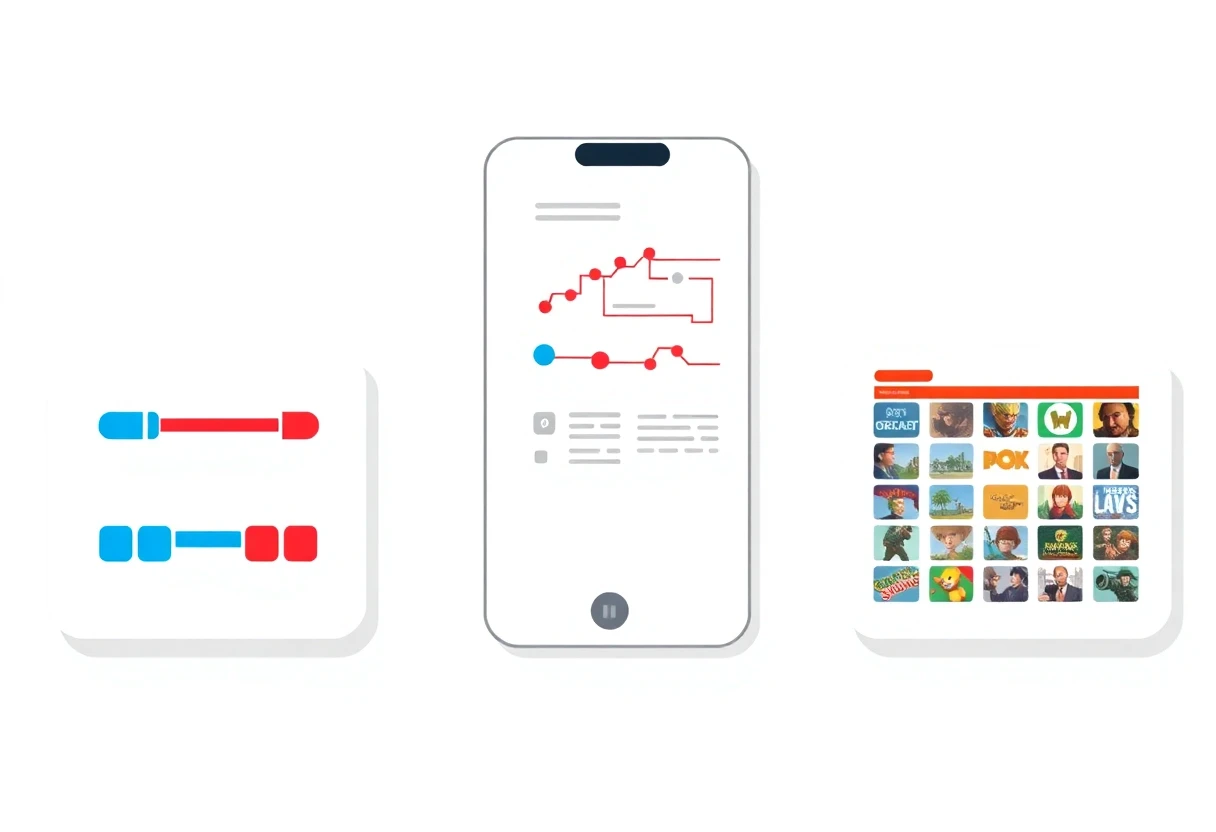
Before installing anything, ask one question: is the problem visual performance, connection quality, or game organization? Most people get this wrong by downloading a “booster” for lag caused by an overloaded router, then blaming the app when ping stays high.
- Frame drops: look for graphics controls such as resolution, FPS, shadows, and rendering quality.
- High ping: look for a network-focused tool, but test it against your normal connection rather than assuming the label proves anything.
- Too many games: a launcher or library may help more than another optimizer.
- Roblox rewards: these listings do not provide official Robux. Never enter a Roblox password into a third-party utility.
There is another problem: several listings provide little public information about app size, permissions, subscription pricing, or Android support. Treat “free” as “free to install” until the store page shows the full in-app purchase terms.
Graphics controls for frame-rate problems
Graphics tools are the most transparent group here because they describe the settings they expose. They still cannot upgrade your phone’s processor or guarantee a higher frame rate. Their value is helping you make a controlled compromise between image quality and smoothness.
Only Red - Headshot & GFX Tool
Only Red is the most specialized listing in the group. It advertises device-specific GFX settings, sensitivity configurations, and DPI calibration, plus a focus on red headshots. That makes it more relevant to competitive shooters than to Roblox players hunting for skins or Robux. The missing details matter: the supplied listing does not show a price, rating, app size, permissions, or a clear platform statement beyond its App Store page. I would test one setting at a time and record the original configuration before changing anything. Best for players who want sensitivity and DPI guidance on a specific device, not users expecting an automatic performance fix.

GFX Tool Launcher
GFX Tool Launcher & Optimizer gives a clearer settings menu than Only Red: resolution, FPS, shadows, rendering quality, and four named profiles—Performance, Balanced, Quality, and Ultra. That structure is useful if you want to compare a low-load setup with a quality-focused one without rebuilding every setting manually. The listing does not provide pricing, ratings, app size, or permission details, so the practical test is simple: apply the Performance profile, play the same map for ten minutes, and compare heat and frame stability. Best for Android or mobile players who want presets rather than aim-specific tuning.

GFX Tool
GFX Tool - Game Booster is the most honest about its role. Its listing says the app shows values to enter in a game’s own graphics settings and does not modify the game directly. That reduces the risk of expecting a magic switch, but it also means the app may feel like a reference sheet rather than a booster. You can choose resolution, FPS, graphics, style, and shadows, then save a preset; the listing also says it can indicate which games suit your device memory. Best for cautious users who want manual control and a reversible workflow.
Game Booster GFX Tool
Game Booster GFX Tool Pro+ makes the boldest graphics claims, listing iPad View, Potato Graphics, 90 FPS, and 1080p Ultra HDR alongside resolution controls. Those labels sound useful, but the listing does not prove that every phone or game supports them. A 90 FPS setting is meaningless if the device panel or game engine caps lower, and forcing aggressive settings can increase heat. Compared with the more measured GFX Tool listing, this one asks for more skepticism. Best for experienced Android users who already know their device limits and want more experimental presets.

The graphics group has a clear winner for transparency: GFX Tool - Game Booster explains that it does not directly modify the game. Only Red is more targeted, while Pro+ is more ambitious but less substantiated. None should be treated as an anti-ban tool or a way to unlock paid game content.
Graphics settings also have a hard limit. If the real issue is unstable Wi-Fi or a distant game server, reducing shadows will not solve it. That is where the network-focused listings enter the comparison.
Ping and connection tools
Network boosters are harder to judge from store copy alone. A lower ping depends on your ISP, router, mobile network, server location, and the route between them. A booster may improve routing in some cases and do nothing in others.
LagX
LagX makes the clearest scale claim here: it targets high ping in more than 200 games. The App Store listing marks it free with in-app purchases, designed for iPad, and shows 4.5 stars from only two ratings. That rating is too small to treat as proof, but the game count gives the app a defined use case. Test it against the same server and time of day you normally play; otherwise, a temporary network improvement can look like an app result. Best for iPad users who play several supported titles and want to test routing without paying before installation.

LagoFast Game Booster
LagoFast has a cleaner rating signal than LagX, with 5.0 stars from six ratings, but six reviews still do not establish consistent performance. Its store listing promises low ping and faster game boosting, while marking the app free with in-app purchases and designed for iPad. That makes it a direct rival to LagX, not a graphics utility. I would keep only the app that produces a lower in-game ping over repeated tests; running two routing tools together can complicate the result. Best for iPad players prepared to compare connection performance rather than trust a star score.

Lower Lag Game Booster
GearUP has the strongest review volume among the dedicated ping tools listed: 58 ratings at 4.3, plus a Utilities chart position of No. 146 on its App Store listing. That is still a modest sample, but it is more useful than two or six ratings. The app is free with in-app purchases and promises faster gaming and lower ping. Its limitation is the same as the others: the supplied data does not show supported games, subscription prices, app size, or permissions. Best for players who want the most publicly tested network booster in this set and are willing to check the paid terms first.

GearUP has the best evidence of user adoption, while LagoFast has the highest displayed score and LagX has the broadest stated game coverage. None has enough data to promise a universal ping reduction. A useful test is to play the same title for three sessions with the booster off, then three with it on, while keeping the server and connection type consistent.
Connection tools are also the category most likely to trigger recurring charges. Check the App Store subscription screen before starting a trial, and cancel through the platform settings rather than simply deleting the app.
Launchers, libraries, and the outlier
Not every gaming companion app should be judged by ping or FPS. Some are about access and organization. One Android listing belongs to a different game ecosystem entirely, which makes that distinction especially important.
Game Booster X
Game Booster X Premium is presented as a gaming companion with a game library, real-time device monitoring, and tools in a Material Design interface. The supplied listing does not include a rating, download count, price, app size, or permission list, so the premium label tells you less than it should. Its appeal is organization and monitoring rather than a proven FPS or ping gain. Best for Android players who want one place to manage games and watch device performance, provided the app explains its permissions and purchase terms clearly.

MCPE Master
MCPE Master is the only listing with substantial Android usage data: 5M+ downloads and 17,400 reviews, but its 3.7 rating is noticeably weaker than the small iPad samples above. It focuses on Minecraft Pocket Edition mods and add-ons, not Roblox optimization, and the developer is listed as Zenspu. That makes it an off-topic pick for Roblox players, but a relevant companion for Minecraft users who want add-on discovery. Best for Android Minecraft players who can tolerate mixed feedback and understand that mods may carry compatibility and account-safety concerns.

Block Launcher Squares
1 Block Launcher Squares is a strategy game rather than a performance utility. Its App Store listing marks it free with in-app purchases and places it in the Strategy category, with no supplied rating, download count, or booster feature. It does not belong in a serious shortlist for lower ping, higher FPS, Roblox skins, or Robux rewards. I would skip it for this use case and only consider it if you wanted a separate casual strategy title. Best for players seeking a standalone strategy game, not a gaming companion.

Common mistakes to avoid
- Confusing ping with FPS: ping is connection delay; FPS is rendered frames. Use a network tool for the first and graphics settings for the second.
- Trusting tiny rating samples: 5.0 from six ratings is not stronger evidence than 4.3 from 58 ratings.
- Expecting official Roblox rewards: none of these listings issues Robux, promo codes, or free Roblox items.
- Changing every setting at once: keep a baseline, change one variable, and test the same game mode.
- Ignoring heat: higher FPS or quality settings can increase battery drain and thermal throttling.
- Skipping permissions and billing screens: free installation does not guarantee a free experience.
Your quick decision framework
Choose Only Red if sensitivity and DPI guidance matter more than general optimization. Choose GFX Tool Launcher & Optimizer for named graphics presets. Choose GFX Tool - Game Booster if you want a manual, non-modifying settings reference. Test Game Booster GFX Tool Pro+ only if you understand your device’s limits.
Try GearUP first among the ping tools if review volume matters. Compare LagoFast and LagX through repeat tests rather than star ratings. Use Game Booster X Premium for organization and monitoring, not guaranteed performance. Use MCPE Master only for Minecraft add-ons, and skip 1 Block Launcher Squares for this category.
For Roblox players, the safest rule is simple: keep your Roblox login inside the official Roblox app or website, and treat every third-party reward promise as unverified. These apps may help with device settings or connection testing, but they do not create official Robux.
For a deeper comparison of routing tools, graphics utilities, and the limits of “boost” claims, read Game Boosters Tested: Which Apps Actually Help?.


